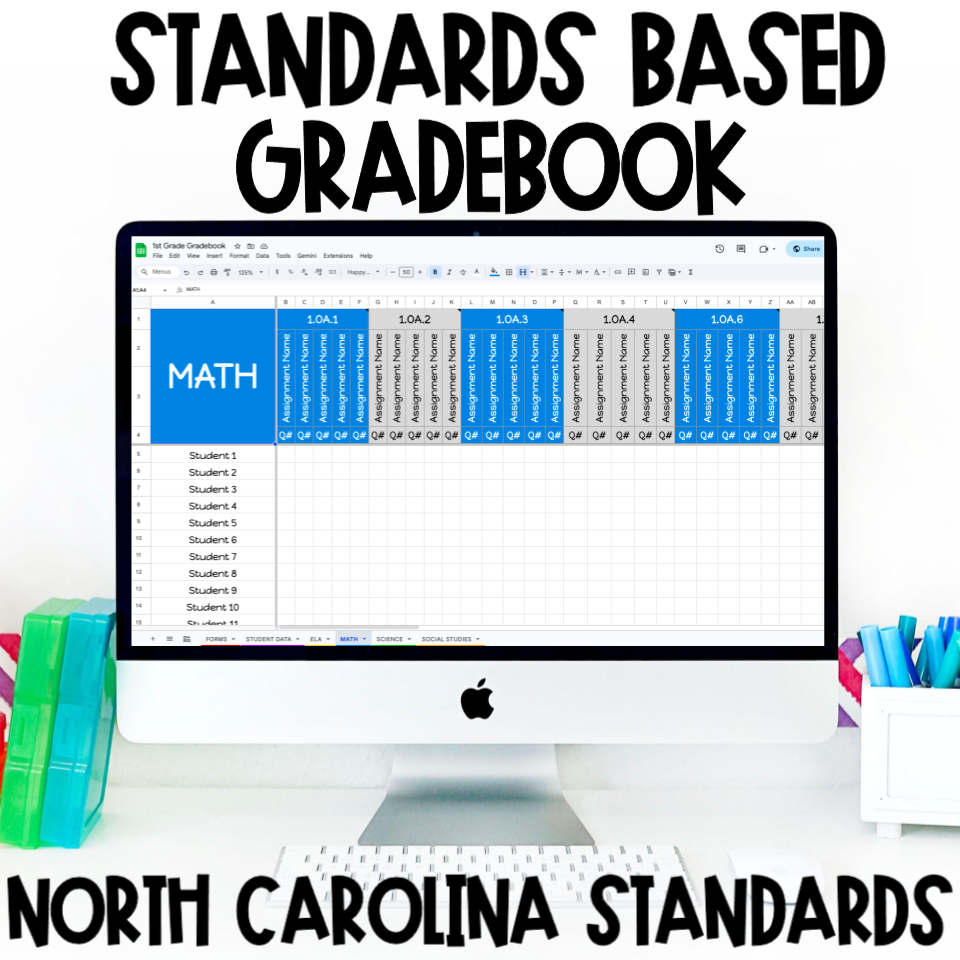
The videos in this blog post were made using this Standards-Based Digital Gradebook. This grade book was designed for NC teachers to help keep track of student data, parent contact and grades for each subject. If you want to have a ready made resource check out the resource here.
Five ways to Use Google Sheets in the Classroom
Many teachers use some sort of Google product in their classroom. But I don’t see many teachers using Google Sheets very often. Google Sheets is one of my favorite Google products because it has so many features not seen in any other of their products. Here are my five favorite Google Sheets features!
#1 - Checkboxes
Each school year I create a Google Sheet that includes student names and then spaces for me to keep track of things like:
- Signed/returned back to school forms
- Field Trip Forms
- Signed/returned report cards
- Permission Forms
Using a checkbox allows me to track who has returned the documents. I also use a similar setup to keep track of students assignments they have turned in so I can easily see who still has items they need to complete and turn in.
#2 - Dropdown Menus
Drop down menus are good to use when you want to limit the options you can type in a cell. For example, if you type similar items in a column it’s easy to have inconsistent entries. For example, if you track how you contact parents and you are documenting that you called home. You might type “Phone”, “Phone call” or “Spoke to on phone”. By having limited options I avoid similar but different entries. I like to use drop downs for:
- Family Contact
- Students overall reading and math level
- Mastery Level (Mastery, Near Mastery, Not Mastered)
#3 - Linking Files
Linking files is a great way to have all the items you need in one place. Saves you time from having to search for files or websites. Things that I link in Google Sheets include:
- Frequently used websites
- Lesson Plan Resources
- Student Products
#4 - Adding Note
Notes are a great way to keep important information you might need but don’t clutter up the spreadsheet. It is only visible when you hover over the cell where it’s at. I like to use notes to:
- Place state standards
- Instructions & Reminders
- “Last updated….”
#5 - Conditional Formatting
Conditional formatting is a great way to help you quickly identify information you want brought to your attention. You can have cells turn a specific color when information is typed in it. I love to use conditional formatting to
- Identify students who need remediation
- Missing Assignments
The best part about conditional formatting is that auto adjusts. So if a cell turns red when the assignment is missing, once the cell shows the assignment has been turned in it will no longer be red.
Want more classroom-ready ideas delivered right to your inbox?
Join the Coffee and Sneakers community and receive exclusive teaching tips, free resources, and activities designed to save you time and engage your students. Sign up here!
Google Sheets is a trademark of Google LLC.

Discover a simple way to teach weather by tracking and graphing daily conditions, using real-time data to build vocabulary and science skills.

Explore matter, physical and chemical properties, and chemical changes with an exciting elephant toothpaste science experiment for kids.

Discover how science scavenger hunts make hands-on learning easy and engaging, with simple activities for exploring matter, forces, and more.

Try the Stroop Effect for kids! This fun brain experiment explores attention, the nervous system, and how our brains process competing information.

Closed sorts vs. open sorts: discover how both strategies help students classify, identify patterns, explain their thinking, and develop deeper science reasoning.

Teach friction with this engaging investigation! Students compare toy car speeds on ramps covered with sandpaper, bubble wrap, and aluminum foil.
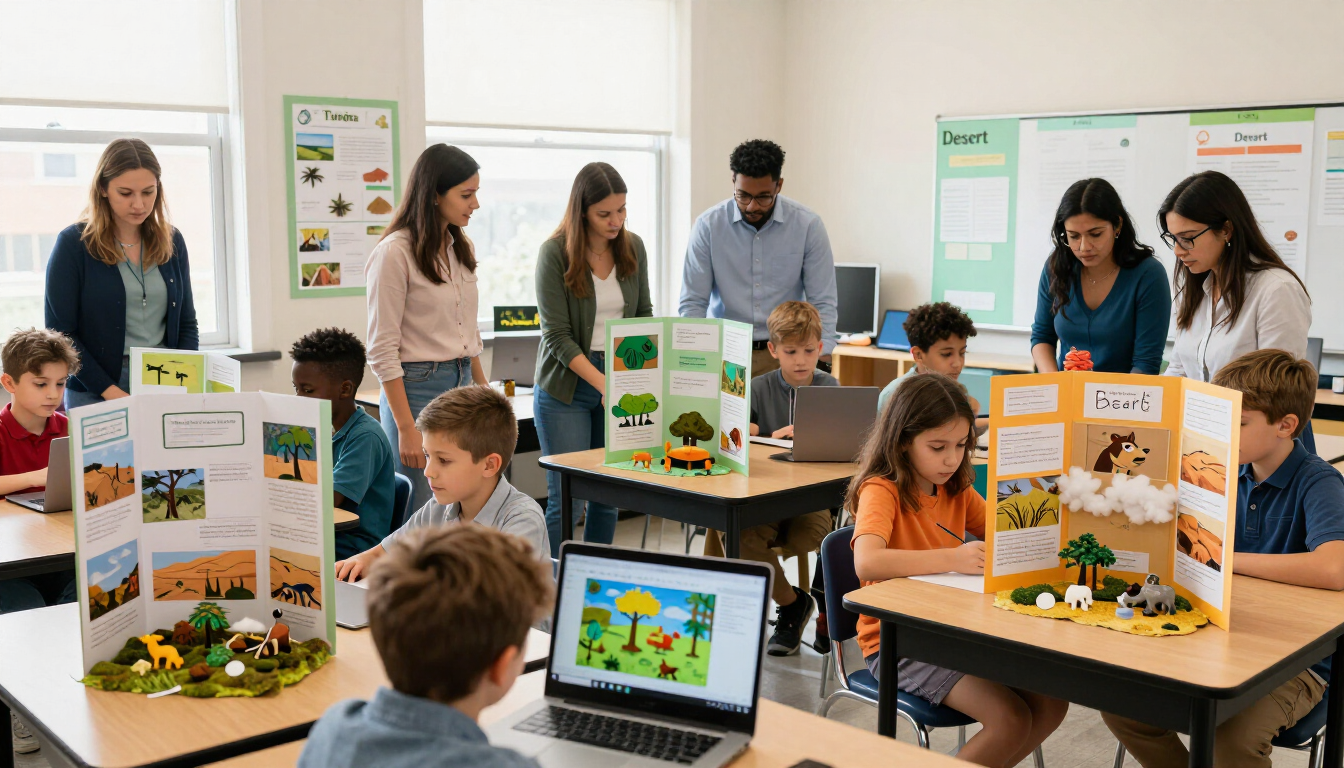
Looking for a meaningful ecosystem project? Learn how to host an Ecosystem Expo where students research biomes, create displays, and present their learning.

Discover hands-on human body system projects that help students explore the skeletal, muscular, digestive, respiratory, and more using simple craft supplies.
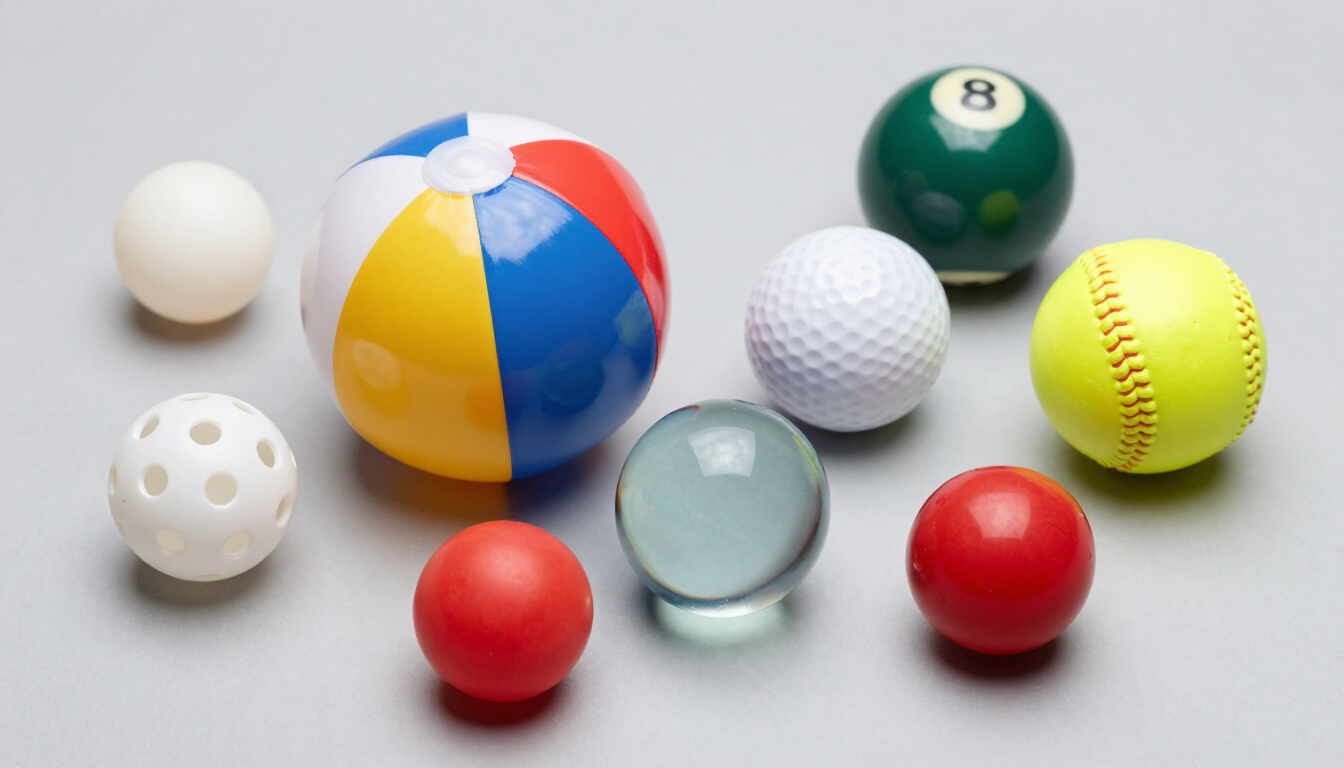
Teach force and motion with hands-on science activities that explore how force strength and mass affect movement using simple materials.
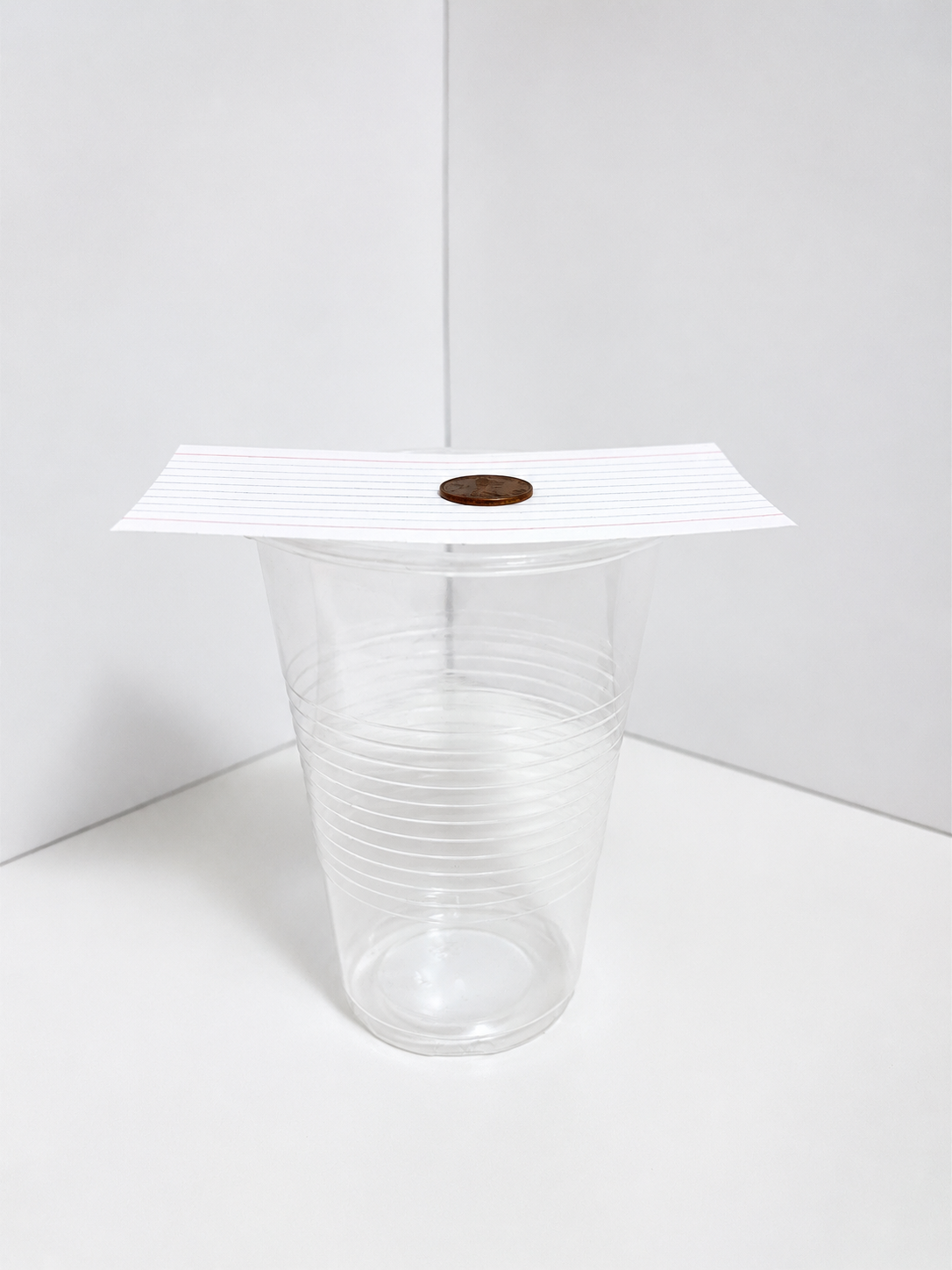
Teach Newton's Laws of Motion with quick, hands-on science activities using simple materials. Perfect for engaging elementary students.